🛠️Troubleshooting
No sound, mic permission, failed imports, latency, notifications, and how to send diagnostic logs.
No sound / can't hear playback
If a play-along, backing track, or the Coach's voice is silent, work through these in order — most cases are the phone itself, not the app.
- Turn the volume up with the side buttons while audio is playing, so you're adjusting media volume and not the ringer.
- iPhone: check the Ring/Silent switch on the left edge isn't flipped to silent (orange showing).
- If you use Bluetooth headphones or a speaker, confirm they're connected and selected as the output — otherwise sound plays there, not on the phone.
- Unplug and replug wired headphones, or toggle Bluetooth off and on, then reopen the app.
- Fully close and reopen Praxis so it re-acquires the audio output.
Microphone permission
Praxis needs the microphone to hear you play and track your pitch. If you tapped Don't Allow during setup, or notes never register, grant access again from your phone's system settings:
- iPhone / iPad: open Settings → Privacy & Security → Microphone, find Praxis Saxophone, and turn the toggle on.
- Android: open Settings → Apps → Praxis Saxophone → Permissions → Microphone and set it to Allow (on newer Android, choose Allow only while using the app).
- Return to Praxis and reopen the tuner or a practice screen — you'll see the live note meter respond when you play.
Import fails (unsupported or large file)
You import your own audio from Studio → Repertoire. Imports can fail for a few reasons:
- Check the file is a supported audio format:
mp3,wav,m4a,aac,flac, orogg. Video files, PDFs, and DRM-protected store downloads won't import. - If you see "Stem minutes used", your monthly stem-separation minutes are spent — imports resume next month, or upgrade to keep going this month.
- If you see "Library limit reached", remove a song you no longer need, or upgrade for more slots.
- For very large or long tracks, trim the file to the section you want and re-import — shorter clips process faster and are less likely to time out.
Notes feel late (run Timing calibration)
Every phone adds a small delay between the sound reaching the mic and the app reacting. If your played notes register a beat behind, calibrate the offset once:
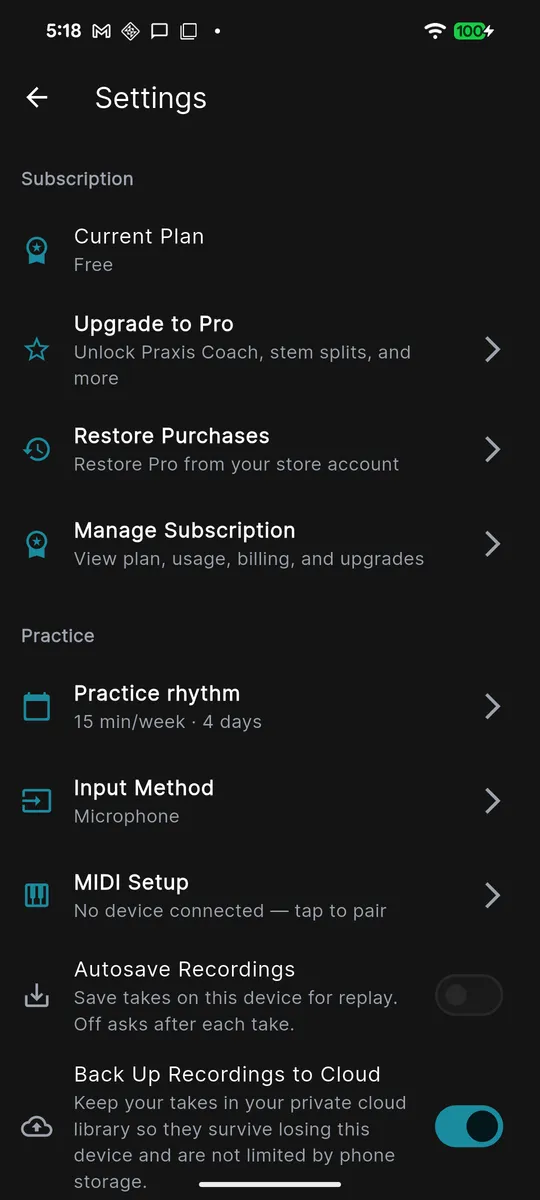
- Go to Profile → Settings → Practice and expand the Advanced section.
- Tap Timing calibration. (The subtitle shows "Not calibrated" until you run it.)
- A metronome plays at a steady tempo — play one short note on each beat, in time, for the full sequence.
- Praxis measures your average delay and saves it as an offset (e.g. "40 ms offset applied"). Re-run it any time your setup changes.
Practice reminders not arriving
If your streak reminders never show up, notifications are likely blocked at the system level. When Praxis says "Saved, but notifications are not permitted," that's the signal to enable them:
- Confirm the reminder is on in Profile → Settings → Notifications and set to a time you'll see it.
- iPhone / iPad: open Settings → Notifications → Praxis Saxophone and turn on Allow Notifications.
- Android: open Settings → Apps → Praxis Saxophone → Notifications and allow them; check no battery-saver or Doze restriction is silencing the app.
- Make sure Focus (iOS) or Do Not Disturb isn't hiding the reminder at your chosen time.
Send diagnostic logs to support
When something's wrong and the steps above don't fix it, send us the app's recent logs so we can see what happened on your device.
- Go to Profile → Settings → Help.
- Tap Send diagnostic logs to support.
- Praxis prepares a redacted log of recent activity and opens a pre-addressed email to
support@clefscape.comwith the subject "Praxis Saxophone diagnostic logs." - Add a sentence or two describing what you were doing when it broke, then send.
Still stuck after trying these steps? Reach out at support@clefscape.com — attach your diagnostic logs and describe what you expected versus what happened, and we'll help.