🚀Getting Started
Requirements, install, sign-in, mic calibration, an interface tour, key features, the glossary, and restoring purchases.
Requirements
Praxis Saxophone runs on modern phones and tablets. Before you install, check that your device meets the minimum operating system:
- iPhone / iPad — iOS 17 or later.
- Android phone / tablet — Android 8.0 (Oreo) or later.
- A working microphone (built-in is fine) so the app can hear you play. A quiet room gives the cleanest pitch tracking.
- Optional: a MIDI wind controller or keyboard if you prefer digital input to the mic.
Install and first launch
- Download Praxis Saxophone from the App Store (iOS) or Google Play (Android).
- Open the app. You will land on the Welcome screen — tap Get Started to begin the guided setup.
- Setup walks you through nine short steps with a progress bar at the top. You can go back at any step with the chevron in the top-left.
Sign in
Signing in saves your progress, calibration, and streak across devices. On the Sign In screen you can:
- Tap Sign in with Google (available on both platforms).
- Tap Sign in with Apple (iOS).
- Or create an account with an email and password.
Pick your saxophone
On the Choose Your Saxophone screen, select the horn you play. This sets your transposition so the notes on screen match what you actually finger:
- Alto Saxophone — an E♭ instrument. A written C sounds as concert E♭.
- Tenor Saxophone — a B♭ instrument. A written C sounds as concert B♭.
You can change this later in Settings if you switch horns.
Mic calibration
Calibration teaches the app how your specific horn, reed, and room sound so
pitch feedback is accurate. You will play a chromatic run of 13 notes, from
written C4 up to C5.
- Grant microphone access when prompted (or connect your MIDI device).
- Play and hold each note steadily for the short countdown. Notes turn green when captured, and the app auto-advances.
- Use the Sensitivity slider (Smooth ↔ Responsive) if the meter feels jumpy or sluggish. Balanced suits most players.
- Tap Skip Note for any note you can't hit yet, or Skip calibration to do it later.
Interface tour
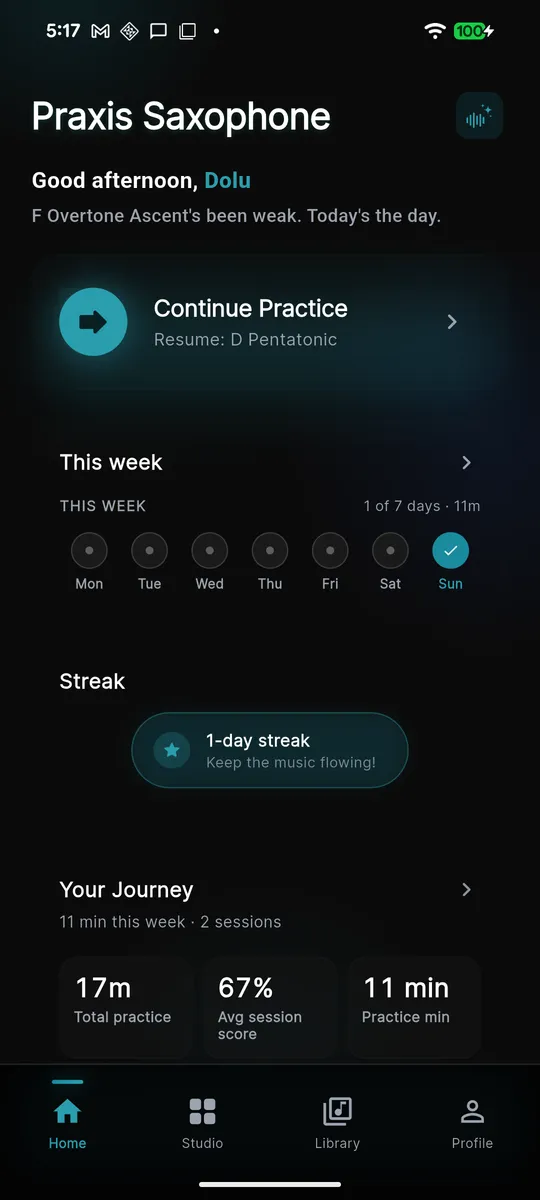
After setup you arrive at the main app. A bottom navigation bar has four tabs:
- Home — your daily practice hub, streak, and Workout of the Day.
- Studio — self-directed practice: tuner, metronome, and the Repertoire pillar, where your imported songs, backing tracks, and chord charts live.
- Play — gamified activities and challenges, separate from your daily plan.
- Profile — progress, account, subscription, and Settings.
Key features overview
- Real-time pitch feedback — the app listens as you play and shows how in-tune each note is.
- Praxis Coach — an AI coach you can chat with or talk to by voice for guidance on your playing.
- Workout of the Day — a personalized daily practice plan built around your goals and skill level.
- Studio tools — tuner, metronome, fingering help, and play-along modes.
Glossary
- Written pitch — the note as printed for your horn, i.e. what you finger and read.
- Concert pitch — the actual sounding pitch a piano would match; differs from written pitch by your transposition.
- Transposition — the fixed offset between written and concert pitch (E♭ for alto, B♭ for tenor).
- Subtone — a soft, breathy tone produced mostly in the low register.
- Altissimo — the extended range above the horn's normal top note, played with special fingerings.
- WOD (Workout of the Day) — your generated daily practice session.
- Pillars — the three skill areas (Sound, Fluency, Repertoire) a Workout draws from. Play is a separate top-level tab, not part of the daily rotation.
- Calibration — the setup that tunes pitch detection to your horn and room.
Restore purchases
If you upgraded to Pro and reinstalled the app or switched devices, restore it without paying again:
- Go to Profile → Settings.
- Tap Restore Purchases (“Restore Pro from your store account”).
- The app checks your App Store or Google Play account and confirms “Pro is active” when found.