🎚️The Studio
Backing tracks (Play with the Band), Record digital sax, Changes, and the Toolbox — tuner, metronome, and audio health.
The Studio tab is your workshop for self-directed practice — everything you reach for when you're not following a guided lesson. It opens with the Praxis Coach pinned at the top, then groups the rest into three sections: Practice, Review, and Tools. Tap any card to open that surface; tap the back arrow to return to the grid.
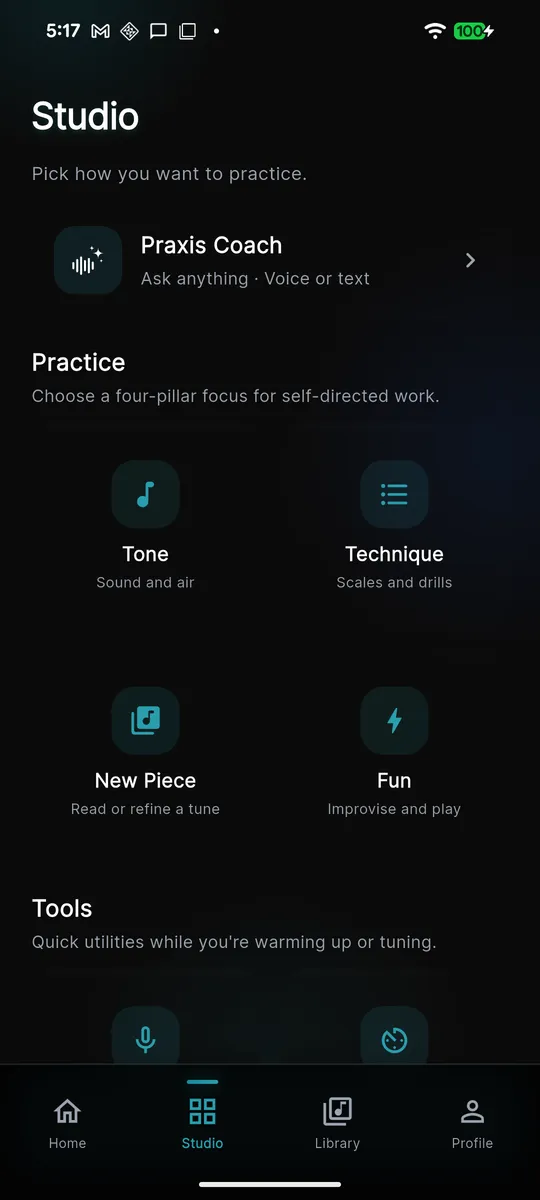
Practice — self-directed play
The Practice section is where you go to simply play without a fixed lesson. It offers the same three pillars your daily plan draws from, so you can pick what to work on directly:
- Sound — sound and air.
- Fluency — scales and drills.
- Repertoire — read or refine a tune, and manage your imported songs, backing tracks, and chord charts (this is where your library of material lives now).
To start: tap a pillar card, then follow its setup screen (choose a scale, tune, or drill) and begin playing. Praxis listens through your mic and gives real-time pitch feedback.
Your Repertoire — songs, backing tracks, and chord charts
Open Repertoire to see everything you've brought into Praxis, organized by status (Ready, In progress) and type: Songs, Backing tracks, and Chord charts.
Tap Add to your repertoire to bring in more material:
- Import song — bring in your own audio to play, sing, or solo along to.
- Backing track — tap Create a groove, describe the style you want, and Praxis generates a custom rhythm-section track you can solo over.
Record digital sax — freeform capture
The Record digital sax card lets you play freely with no fixed exercise, then reads your take back to you as engraved notation — a score generated from what you actually played.
The Toolbox — tuner, metronome, and setup checks
The Tools section holds the quick utilities you reach for while warming up. Each opens as its own screen:
- Tuner — tune by ear. Play a note and the display shows how sharp or flat you are. It reads your written pitch (what you finger), not concert pitch. While it's open the app-wide "Mic on" indicator stays lit.
- Metronome — keep time. Set a tempo, or use the Tap button to tap a beat and let Praxis match it, then start the click.
- Audio Health — check your pitch and setup. Run this if the app isn't hearing you correctly; it confirms your input source and that Praxis is detecting your sound cleanly.
The Review section rounds out the tab with Recent Sessions (what you practiced lately) and What Coach Remembers (the profile facts the Coach draws on).